How to Install Proxmox VE Introduction
Proxmox VE is an open-source server platform for enterprise virtualization. As a Debian-based Linux distribution, Proxmox uses a modified Ubuntu kernel to run multiple virtual machines and containers on a single server.
You can deploy and manage virtualized environments through a web console or a command line, ensuring simple and fast accessibility.
This tutorial shows how to install and configure Proxmox.
How to install and configure Proxmox VE. Prerequisites
A physical or dedicated server. 64bit CPU. At least 1GB of RAM (and additional RAM needed for guest VMs). A USB stick with at least 1GB storage. Install Proxmox Virtual Environment via GUI Follow the steps below to install Proxmox VE on a physical or dedicated server.
Note: For the best performance, use Proxmox on bare-metal hardware, especially for production environments. Boot up a phoenixNAP Bare Metal Cloud server with Proxmox installed and configured out of the box.
Bare Metal Cloud offers automated deployment with Proxmox servers typically deployed in 8 minutes (no additional costs). See how easy it is to deploy a Bare Metal Cloud server.
Step 1: Download Proxmox ISO Image
The first step is to download the Proxmox VE ISO image. Follow the steps below:
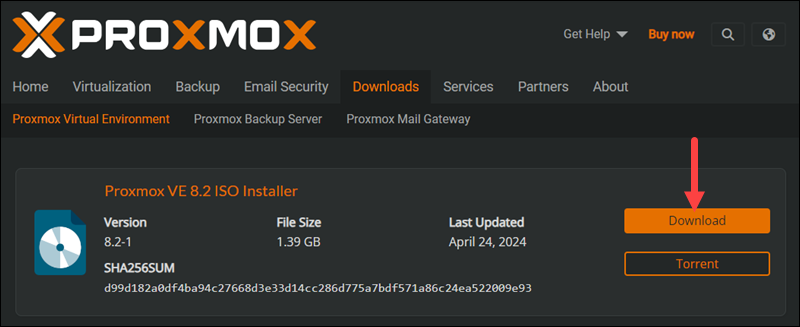
- Navigate to the official Proxmox ISO Downloads page and find the latest Proxmox Installer available. At the time of writing, the latest version was 8.2-1. If a newer version is available, it is listed at the top. Click Download and save the file.
Step 2: Prepare Installation Medium
Copy the Proxmox ISO image on a CD/DVD or a USB flash drive. Although both options are possible, it is assumed that most systems don't have an optical drive.
Plug in the USB drive and copy the ISO image to the USB stick using the command line or a USB formatting utility (such as Etcher or Rufus).
Note: Back up and remove any data on the device as the process will erase any previously stored data.
If you are working on Linux, the fastest way to create a bootable USB is to use the following syntax:
dd bs=1M conv=fdatasync if=./proxmox-ve_.iso of=/device/name Modify the file name and path in if=./proxmox-ve_.iso and make sure to provide the correct USB device name in of=/device/name.
To find the name of your USB stick, run the following command before and after plugging in the device:
lsblk Compare the output. The additional entry in the second output is the name of the device.
Step 3: Launch the Proxmox Installer
-
Move to the server (machine) where you want to install Proxmox and plug in the USB device.
-
While the server is booting up, access the boot menu by pressing the required keyboard key(s). Most commonly, they are either Esc, F2, F10, F11, or F12.
-
Select the installation medium with the Proxmox ISO image and boot from it.
-
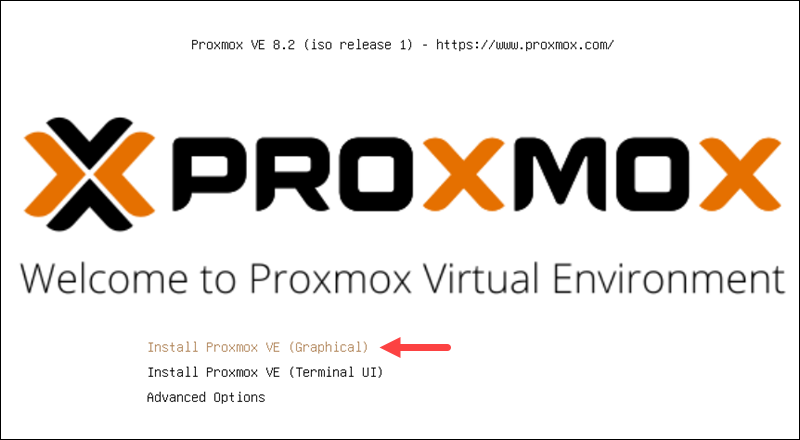
The Proxmox VE menu appears. Select Install Proxmox VE to start the standard installation.
-
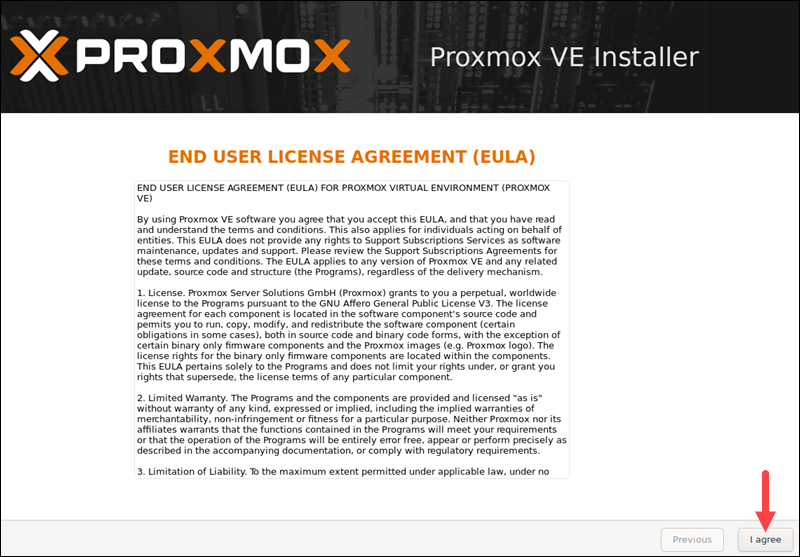
Read and accept the EULA to continue.
-
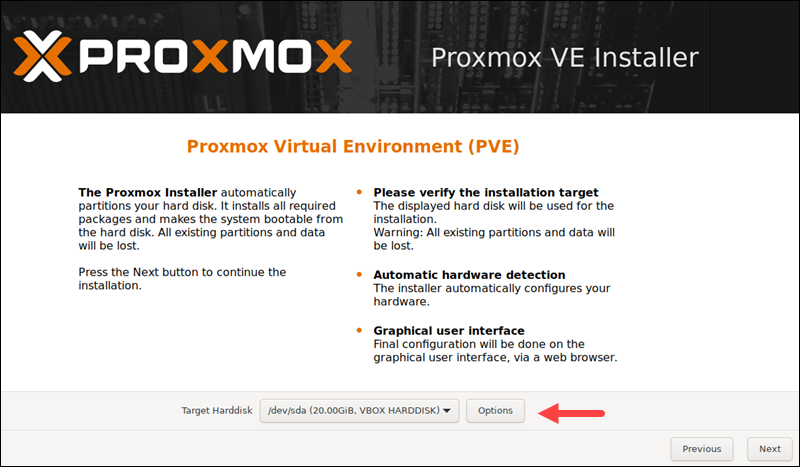
Choose the target hard disk where you want to install Proxmox. Click Options to specify additional parameters, such as the filesystem. By default, it is set to ext4.
-
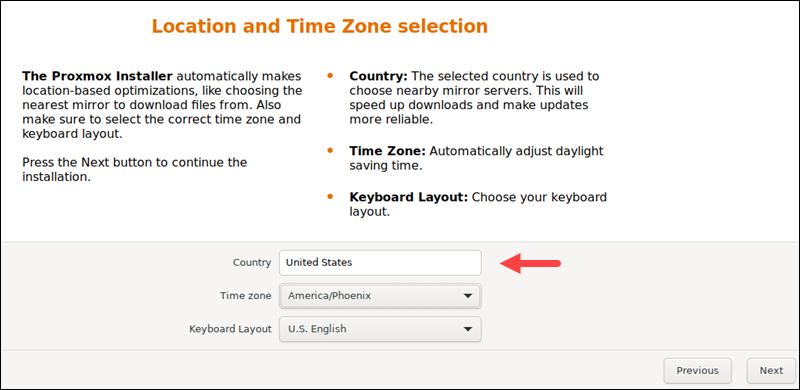
Next, set the location, time zone, and keyboard layout. The installer autodetects most of these configurations.
-
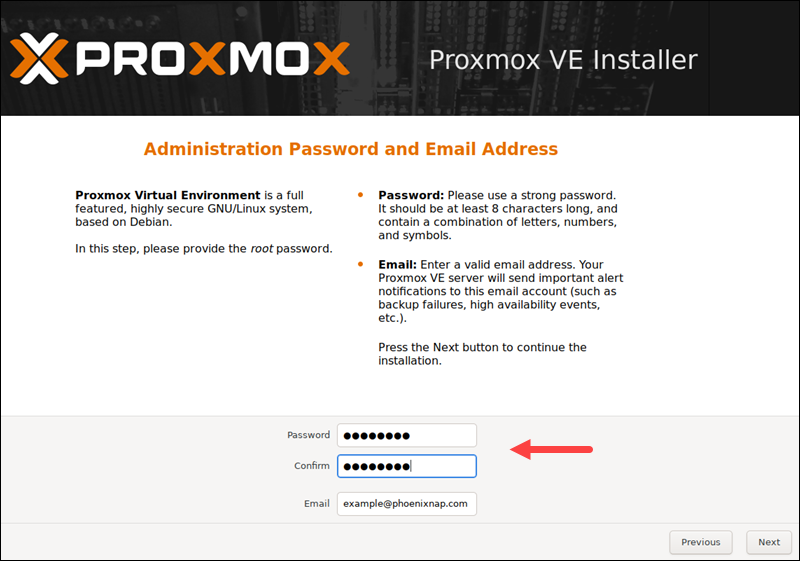
Create a strong password for your admin credentials, retype the password to confirm, and type in an email address for system administrator notifications.
-
The final step in installing Proxmox is setting up the network configuration. Select the management interface, a hostname for the server, an available IP address, the default gateway, and a DNS server. During the installation process, use either an IPv4 or IPv6 address. To use both, modify the configuration after installing.
-
The installer summarizes the selected options. After confirming everything is in order, press Install.
-
Remove the USB drive and reboot the system after installation.
Step 4: Run Proxmox
-
Once the system reboots, the Proxmox GRUB menu loads. Select Proxmox Virtual Environment GNU/Linux and press Enter.
-
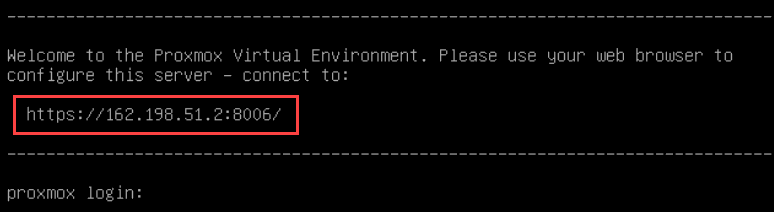
Next, the Proxmox VE welcome message appears. It includes an IP address that loads Proxmox. Navigate to that IP address in a web browser of your choice.
-
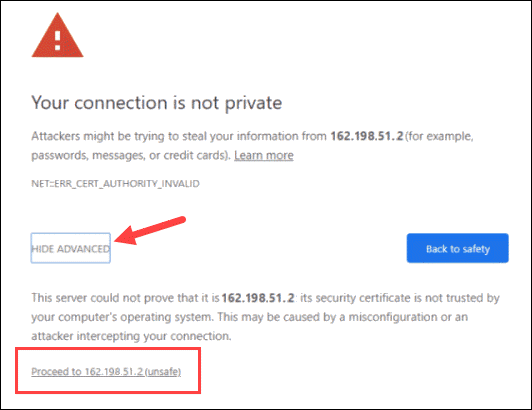
After navigating to the required IP address, you may see a warning message that the page is unsafe because Proxmox VE uses self-signed SSL certificates. Click the IP link to proceed to the Proxmox web management interface.
-
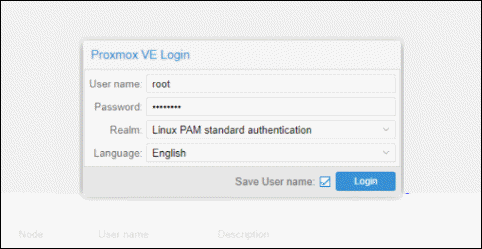
To access the interface, log in as root and provide the password you set when installing Proxmox.
-
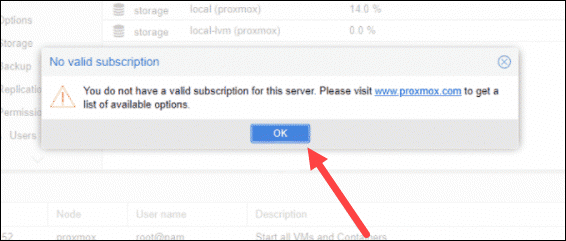
A dialogue box pops up saying there is no valid subscription for the server. Proxmox offers an optional add-on service to which you can subscribe. To ignore the message, click OK.
Step 5: Create a VM
Now that you logged in to the Proxmox web console, follow these steps to create a virtual machine.
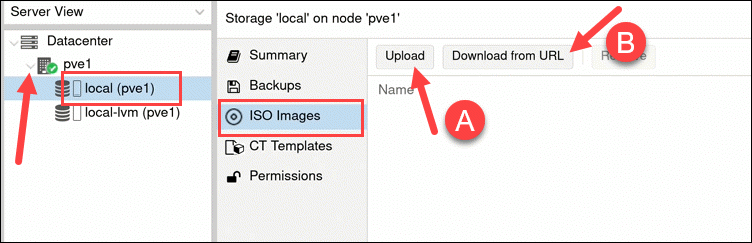
- Make sure you have ISO images for installation mediums. Move to the resource tree on the left side of your GUI. Select the server you are running and click on local (pve1). Select ISO Images from the menu and choose between uploading an image or downloading it from a URL.
-
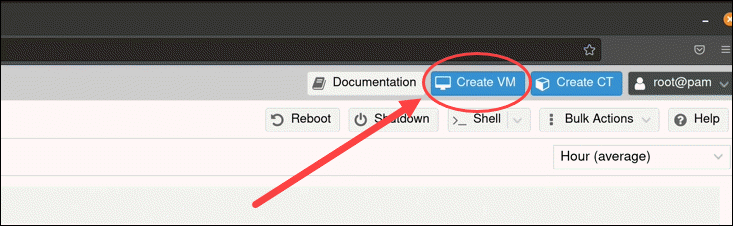
Once you have added an ISO image, spin up a virtual machine. Click the Create VM button.
-
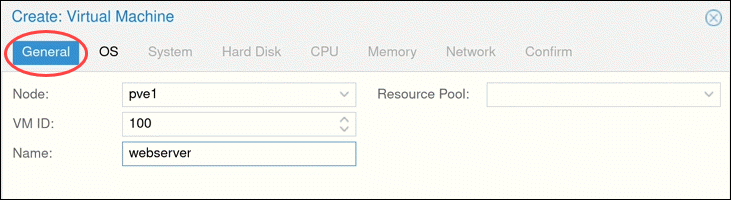
Provide general information about the VM:
Start by selecting the Node. If you are starting and have no nodes yet, Proxmox automatically selects node 1 (pve1).
Provide a VM ID. Each resource has to have a unique ID.
Finally, specify a name for the VM.
-
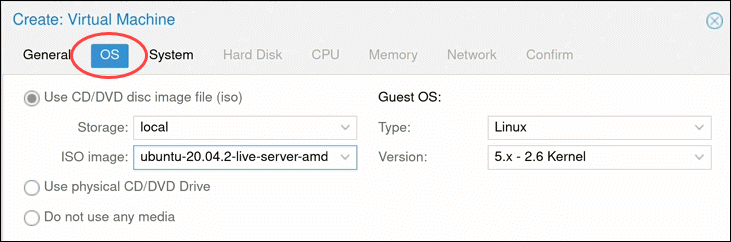
Next, switch to the OS tab and select the ISO image you want for your VM. Define the OS Type and kernel Version. Click Next to continue.
-
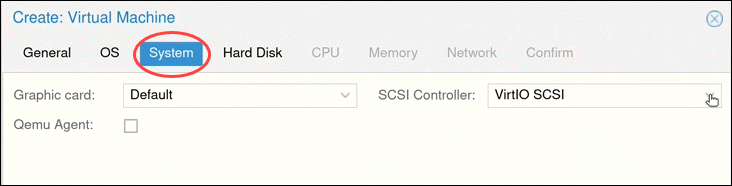
Modify system options (such as the Graphic card and SCSI controller) or leave the default settings.
-
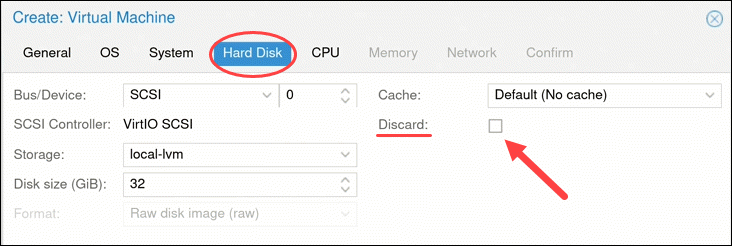
Configure any Hard Disk options you want the VM to have. You can leave all the default settings. However, if the physical server uses an SSD, enable the Discard option.
-
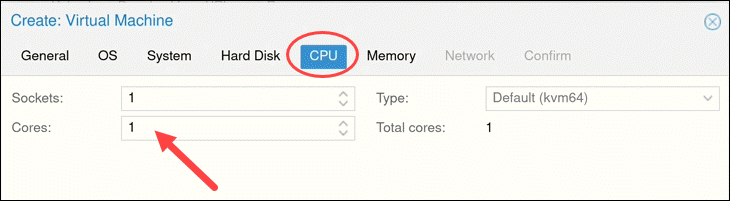
The number of Cores the physical server has determines how many cores you can provide to the VM. The number of cores allocated also depends on the predicted workload.
-
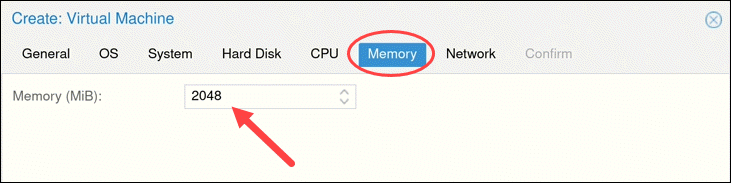
Next, choose how much RAM Memory (MiB) you want to assign to the VM.
-
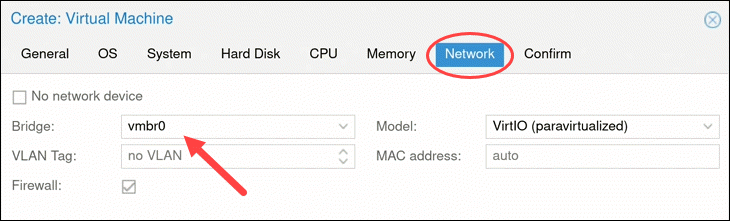
Move on to the Network tab. It is recommended to separate the management interface from the VM network. For now, leave the default setting and click Next.
-
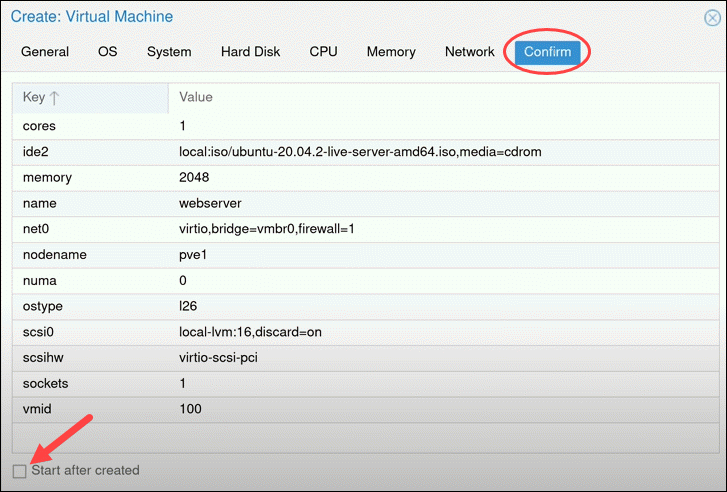
Proxmox loads the Confirm tab that summarizes the selected VM options. To start the VM immediately, check the box under the listed information or start the VM manually later. Click Finish to create the VM.
-
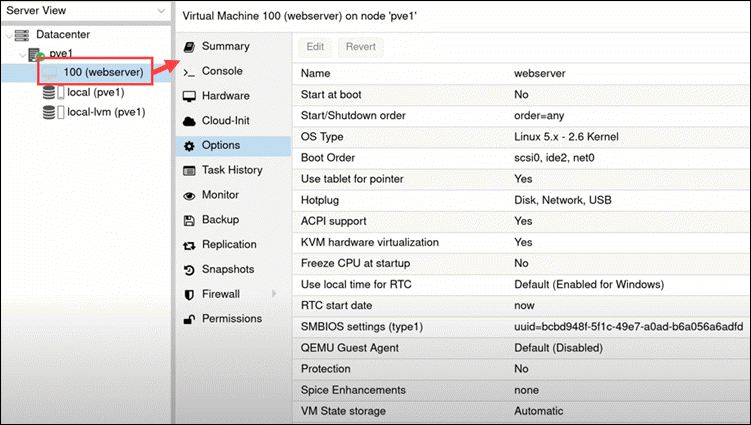
The newly created VM appears in the resource tree on the left side of the screen. Click the VM to see its specifications and options.